
How to Schedule Tasks Automatically?
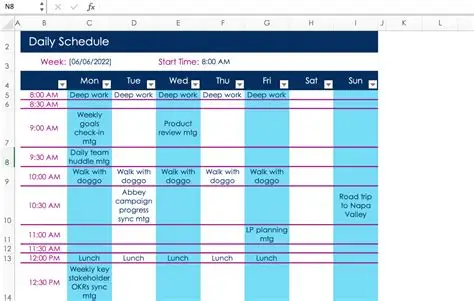
Scheduling tasks manually can be time-consuming and inefficient, especially in busy office environments where multiple responsibilities must be handled simultaneously. Automating task scheduling helps ensure that work is completed on time, reduces missed deadlines, and improves overall productivity.
By using the right tools and strategies, you can automate task scheduling and create a more organized and efficient workflow.
Understanding Task Scheduling Automation
Task scheduling automation involves using software tools to plan, assign, and manage tasks automatically based on time, triggers, or conditions.
It allows you to:
- Schedule tasks in advance
- Set deadlines and reminders
- Automate recurring activities
- Track progress
Automation ensures tasks are completed without constant manual oversight.
Why Automate Task Scheduling?
Automating task scheduling offers several benefits:
- Saves time
- Reduces missed deadlines
- Improves organization
- Enhances productivity
- Ensures consistency
It helps individuals and teams stay on track.
Types of Task Scheduling
Time-Based Scheduling
Tasks are scheduled at specific times or dates.
Examples:
- Daily reports at 9 AM
- Weekly meetings every Monday
Event-Based Scheduling
Tasks are triggered by specific events.
Examples:
- New email → Create task
- Form submission → Assign task
Recurring Task Scheduling
Tasks repeat automatically.
Examples:
- Monthly invoices
- Weekly team updates
Tools for Automating Task Scheduling
Microsoft Outlook
Microsoft Outlook is widely used for scheduling.
Features include:
- Calendar scheduling
- Reminders
- Task tracking
Benefits:
- Keeps tasks organized
- Ensures deadlines are met
Microsoft Teams
Microsoft Teams helps teams coordinate schedules.
Features include:
- Meeting scheduling
- Notifications
- Task integration
Trello
Trello automates task management.
Features include:
- Due dates
- Reminders
- Automation rules
Asana
Asana offers advanced scheduling features.
Features include:
- Task deadlines
- Recurring tasks
- Workflow automation
Microsoft Power Automate
Microsoft Power Automate allows advanced scheduling.
Features include:
- Automated workflows
- Event-based triggers
- Integration with other tools
Steps to Automate Task Scheduling
Step 1: Identify Tasks to Automate
Start by identifying tasks that:
- Are repetitive
- Have deadlines
- Require reminders
Examples include reports, meetings, and follow-ups.
Step 2: Choose the Right Tool
Select a tool based on your needs.
For example:
- Use Microsoft Outlook for simple scheduling
- Use Asana for team workflows
Step 3: Set Deadlines and Triggers
Define when tasks should occur.
You can:
- Set specific dates
- Use recurring schedules
- Trigger tasks based on events
Step 4: Add Reminders and Notifications
Reminders ensure tasks are not forgotten.
You can:
- Set alerts
- Send notifications
- Use email reminders
Step 5: Automate Task Assignment
Assign tasks automatically to team members.
This improves:
- Accountability
- Efficiency
Step 6: Monitor and Adjust
Regularly review your scheduling system.
You should:
- Track progress
- Adjust deadlines
- Improve workflows
Automating Recurring Tasks
Recurring tasks are ideal for automation.
Examples include:
- Weekly meetings
- Monthly reports
- Daily checklists
Automation ensures consistency.
Integrating Scheduling with Other Tools
Automation becomes more powerful when tools are integrated.
For example:
- Email → Task creation
- Calendar → Reminder alerts
Tools like Zapier can connect different systems.
Benefits of Automated Scheduling
Automating task scheduling provides:
- Better time management
- Increased productivity
- Reduced stress
- Improved organization
- Fewer missed deadlines
These benefits enhance overall performance.
Real-Life Examples
Examples of automated scheduling include:
- Automatically scheduling team meetings
- Setting reminders for deadlines
- Assigning tasks after form submissions
- Creating recurring reports
These applications save time and effort.
Common Mistakes to Avoid
Avoid these mistakes:
- Overloading schedules
- Ignoring priorities
- Not updating tasks
- Using too many tools
Effective scheduling requires balance.
Tips for Effective Task Scheduling
To improve scheduling:
- Prioritize important tasks
- Keep schedules realistic
- Use reminders
- Review regularly
These practices improve efficiency.
Challenges of Automation
Automation may present challenges such as:
- Learning new tools
- Managing complex workflows
- Technical issues
Proper training helps overcome these challenges.
Role in Office Administration
Task scheduling is essential for administrative roles.
It helps:
- Manage daily activities
- Coordinate teams
- Ensure deadlines are met
Automation simplifies these responsibilities.
Future of Task Scheduling
Task scheduling is evolving with technology.
Future trends include:
- AI-based scheduling
- Smart assistants
- Predictive planning
These innovations will further improve efficiency.
Impact on Productivity
Automated scheduling improves productivity by:
- Saving time
- Reducing manual work
- Ensuring timely completion
It allows employees to focus on important tasks.
Conclusion
Automating task scheduling is essential for staying organized and productive in modern workplaces. By using tools like Microsoft Outlook, Trello, and Microsoft Power Automate, individuals and teams can manage tasks more efficiently.
With proper planning and the right tools, automated scheduling can transform how work is organized, ensuring tasks are completed on time and with minimal effort.
- Arts
- Business
- Computers
- Spiele
- Health
- Startseite
- Kids and Teens
- Geld
- News
- Personal Development
- Recreation
- Regional
- Reference
- Science
- Shopping
- Society
- Sports
- Бизнес
- Деньги
- Дом
- Досуг
- Здоровье
- Игры
- Искусство
- Источники информации
- Компьютеры
- Личное развитие
- Наука
- Новости и СМИ
- Общество
- Покупки
- Спорт
- Страны и регионы
- World

 English
 Russian
 French
 Spanish
 Portuguese
 Turkish
 Dutch
Dutch
 Italiano
 Arabic
 Romaian
 Portuguese (Brazil)
 Greek
Greek